
Best Crimson Desert PC & Mac settings: Boost FPS, fix performance issues & more
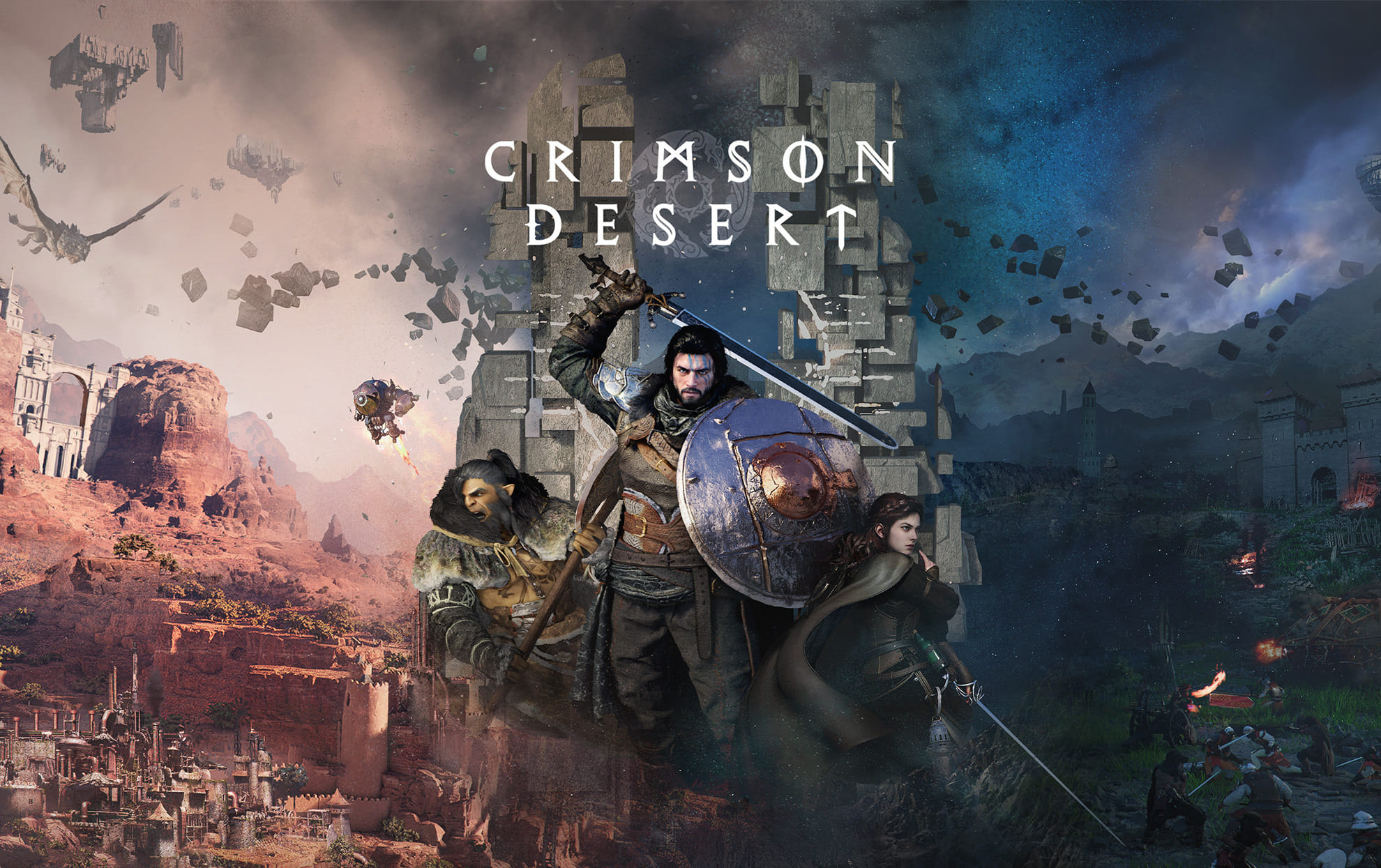
(Courtesy : Pearly Abyss)
Best settings that you need to apply for a smooth performance!
Pearl Abyss open-world action RPG, Crimson Desert, is finally out and it has some stunning visuals and graphics. However, to run the game smoothly on your PC & Mac, you need to fine-tune your game settings.
Although the game is optimized and can be played on relatively low-cost hardware, incorrect settings may result in noise and the aspect of inconsistent frame rates.
In this article, you can check out the best settings guide for your PC and Mac to run the game more smoothly.
Catch Every Update, Anytime, Anywhere
Best settings for low-end & high-end PC for Crimson Desert
If you are running this game on an old PC or a budget gaming system, then you must focus on reducing heavy GPU usage while keeping the visuals intact:
Low-end PC
- Model Quality: Low (big FPS boost)
- Texture Quality: Cinematic
- Shadow Quality: High or Ultra
- Ray Tracing: Off (unless supported well)
- Lighting Quality: Ultra
- Reflection Quality: High
- Advanced Weather Effects: Off
- Foliage Density: Low/Medium
- Volumetric Fog: High
- Blur Intensity: 0
For the upscaling, you can try DLSS Quality or DLAA and can also enable the ray reconstruction for better image clarity in the game.
High-end PC
- Model Quality: Ultra
- Texture Quality: Cinematic
- Shadow Quality: Ultra
- Ray Tracing: On
- Lighting Quality: Cinematic/Ultra
- Reflection Quality: Cinematic
- Advanced Weather Effects: On
- Foliage Density: Cinematic
- Volumetric Fog: High (Ultra offers minimal improvement)
- Blur Intensity: 0
Also, use DLSS Quality or DLSS for sharp visuals in the game. You can also combine DLSS Performance (Ray Reconstruction) and FSR Performance (Ray Regeneration) for optimal performance.
Also Read: Crimson Desert Respec explained: Reset skills, refund points, how to do it & more
Best Crimson Desert setting for Mac
For Mac users, you can copy these settings for a great performance:
- Model Quality: Low
- Texture Quality: Cinematic
- Shadow Quality: High / Ultra
- Ray Tracing: Off
- Lighting Quality: Ultra
- Reflection Quality: High
- Advanced Weather Effect: Off
- Water Quality: Ultra
- Foliage Density: Low / Medium
- Volumetric Fog Quality: High
- Effect Quality: Cinematic
- Simulation Quality: Cinematic
- Post-processing Effect Quality: Cinematic
- Blur Intensity: 0
By making these small and some big changes in the settings, you can make Crimson Desert run 10 times better on your PC or Mac.
FAQs
Why does Crimson Desert look noisy in some areas?
The noise is most noticeable in low-light environments and can be reduced by tweaking upscaling and post-processing settings.
Should I use presets or custom settings?
Custom settings are better, as presets don’t always optimize performance effectively.
Is ray tracing worth enabling?
Only if your GPU supports it well. Otherwise, turning it off improves performance significantly.
What is the best upscaling option?
DLSS Quality or DLAA provides the best balance between visuals and performance.
For more updates, follow Khel Now Gaming on Facebook, Twitter, and Instagram; download the Khel Now Android App or IOS App and join our community on Telegram & Whatsapp.