
Best graphics settings for GTA 6 on PS5, PS5 Pro & Xbox Series X/S
(Courtesy : Rockstar Games)
Enjoy the amazing visuals & realism
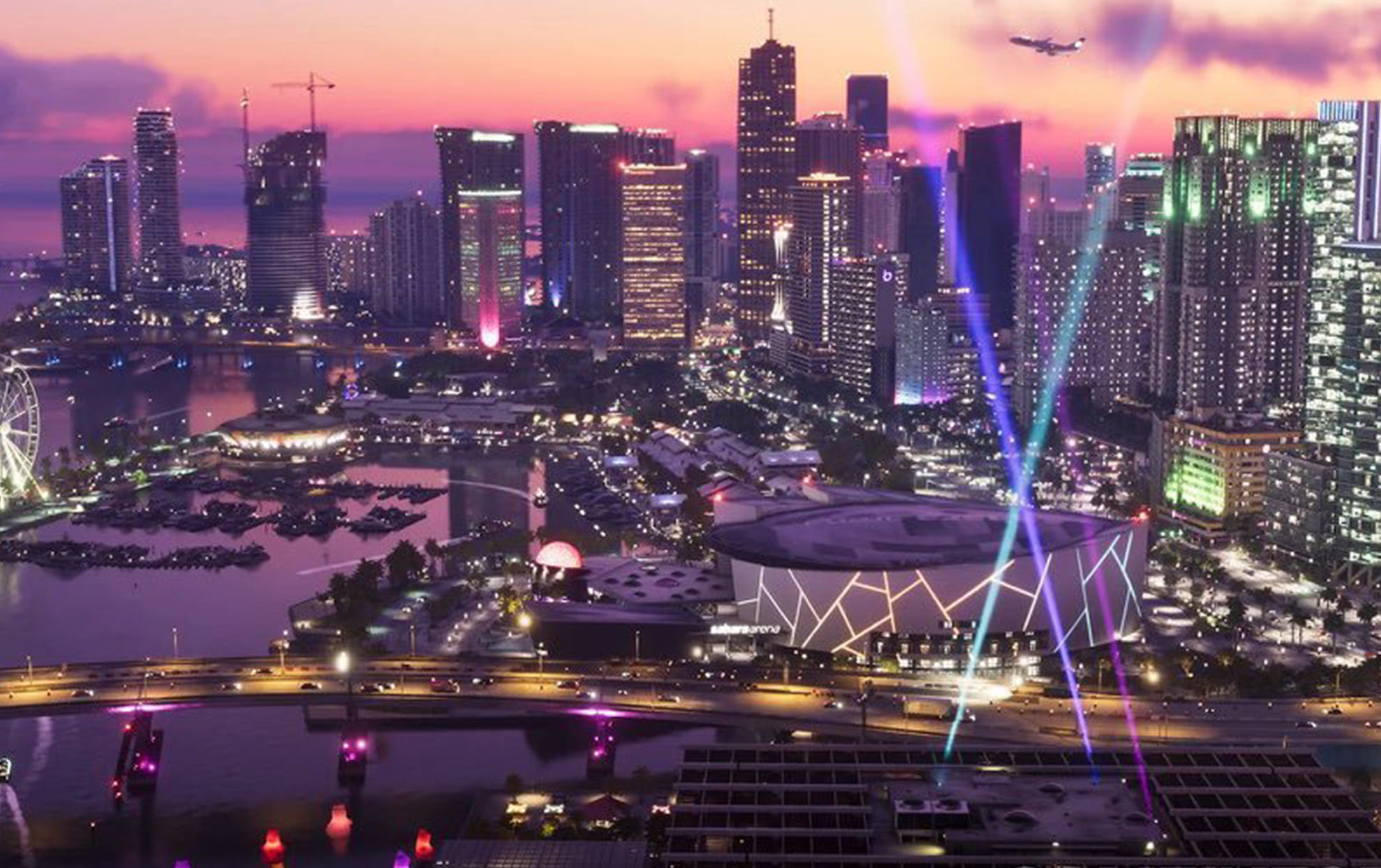
There is no doubt that GTA 6 is one of the most visually impressive and detailed open-world games that has ever been created. It features amazing realistic lighting, detailed environments, and advanced weather effects.
Although the game is locked at 30 FPS on consoles, there are still some settings that you can tweak to have a smoother overall experience while playing the game.
Catch Every Update, Anytime, Anywhere
Best GTA 6 in-game settings
Most of the visual improvements can be made from the Display and Camera settings in the game:
Reduce Motion Blur
Motion blur can cause the image to get softer when it is moving quickly. A lower setting (0 or about 1-2) will produce a sharper and cleaner image, often. You won’t feel motion sickness now.
Adjust Brightness
If your game is too dark or bright, you can revisit the brightness calibration. Make sure to fine-tune these settings to improve visibility in the game.
Disable Camera Bob and reduce Camera Shake
Make sure to reduce the Camera Shake and turn Camera Bob off for a more stable viewing experience.
Your driving and on-foot exploration will become much smoother and it will also improve visibility during combat.
Also Read: GTA 6 generates $3.79 Billion on launch day & pre-orders surpass 32.5 million copies
Optimize your console display settings
On PS5 and PS5 Pro, head to Settings>Screen and Video>Video Output. Set your display resolution to the highest option supported by your TV or Monitor.
If you are playing on PS5 Pro, make sure to turn on PlayStation Spectral Super Resolution (PSSR) to enhance the picture quality.
Can you improve GTA 6 graphics on consoles?
Yes. While you can’t increase the frame rate beyond 30 FPS, adjusting display, camera, brightness, and HDR settings can noticeably improve image quality.
Should Motion Blur be turned off in GTA 6?
Many players prefer lowering Motion Blur to 0–2 for a sharper and clearer image, although the ideal setting depends on personal preference.
Should HDR be enabled in GTA 6?
It depends on your TV or monitor. High-quality HDR displays can enhance visuals, while some displays may look better with HDR disabled. Testing both options is recommended.
For more updates, follow Khel Now Gaming on Facebook, Twitter, and Instagram; download the Khel Now Android App or IOS App and join our community on Telegram & Whatsapp.