
Best crosshair settings for The Finals in 2025: Boost your aim!
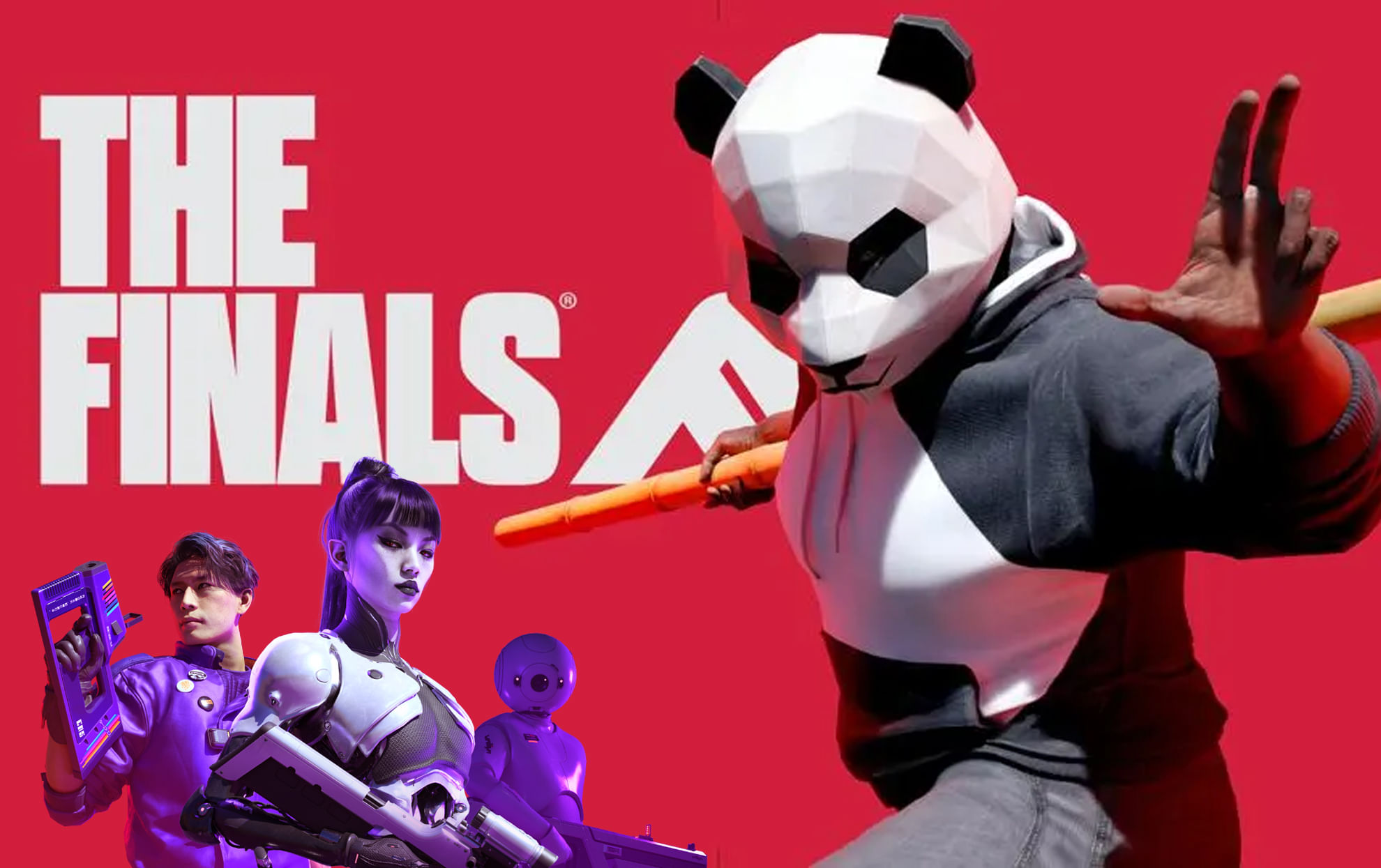
(Courtesy : Embark Studio)
Hit your shots!
Thrilling team-based FPS shooter developed by Embark Studio, The Finals is a very competitive game. Sometimes, this fast-paced game can frustrate you if your shots are missing.
Having a good crosshair might make or break many things in the FPS competitive game. In this article, you will find some of the best crosshair settings for this game.
Best crosshair settings for The Finals
Here are the five best crosshair setups, which provide an edge in balancing visibility, precision, and aesthetics.
Green Crosshair
- Width: 1
- Outline Width: 2
- Red/Green/Blue: 0/255/0
- Red/Green/Blue Outline: 0/0/0
- Center Dot: On
- Center Dot Radius: 1
- Opacity: 100%
- Why it works: Green stands out on urban maps, ensuring excellent visibility while not blocking your vision.
Classic Grey Crosshair
- Width: 1
- Outline Width: 2
- Red/Green/Blue: 123/123/123
- Red/Green/Blue Outline: 0/0/0
- Center Dot: On
- Center Dot Radius: 1
- Opacity: 100%
- Why it works: The gray hue reduces distractions while remaining visible, making it ideal for players who focus on their headshots.
Red Crosshair
- Width: 1
- Outline Width: 2
- Red/Green/Blue: 255/0/0
- Red/Green/Blue Outline: 0/0/0
- Center Dot: On
- Center Dot Radius: 1
- Opacity: 100%
- Why it works: Red provides a strong contrast, making it excellent for competitive players who need to quickly identify targets.
Small Crosshair (Competitive)
- Width: 1
- Outline Width: 1
- Red/Green/Blue: 0/255/0
- Red/Green/Blue Outline: 0/0/0
- Center Dot: Off
- Center Dot Radius: 0
- Opacity: 80%
- Why it works: A thinner, more transparent crosshair improves precision and map awareness for professionals.
Cyan Crosshair
- Width: 1
- Outline Width: 2
- Red/Green/Blue: 0/225/225
- Red/Green/Blue Outline: 0/0/0
- Center Dot: On
- Center Dot Radius: 1
- Opacity: 100%
- Why it works: Cyan is popular in FPS games due to its clarity across map backgrounds.
How to change the crosshair setting in The Finals?
Customize and set up your new crosshair by following these steps:
- Launch The Finals on your PC or Console.
- Open the settings menu by clicking on the gear icon on the top right part of the screen.
- Head for the Gameplay or Accessibility tab.
- After finding the crosshair option, adjust with any crosshair setup from the above.
Make sure to go for the practice range and test your crosshair fully until you become comfortable with it. I am sure your aim will feel better now in The Finals.
For more updates, follow Khel Now Gaming on Facebook, Twitter, and Instagram; download the Khel Now Android App or IOS App and join our community on Telegram & Whatsapp.

Mahaksh Chauhan is a passionate gaming journalist who loves for old-school RPGs and turn-based games. With a keen eye for storytelling and a deep understanding of game mechanics, Mahaksh brings an unique perspective to the world of gaming. Inspired by classics like Persona, Red Dead Redemption 2, and Skyrim, Mahaksh is dedicated in sharing the magic of games with readers. When not writing or gaming, Mahaksh can be found cheering on WWE superstars or watching his favourite Anime.